JDK vs JRE vs JVM – Easy Explanation
(Compile & Run Flow for Beginners)
Many beginners get stuck on these three words: JDK, JRE, and JVM. In this lesson, you’ll learn what each one means, how they work together, and what you need to install. We will explain it using simple analogies, diagrams, and real commands like javac and java.
Table of Contents
Jump to section1) Big Picture: How Java runs
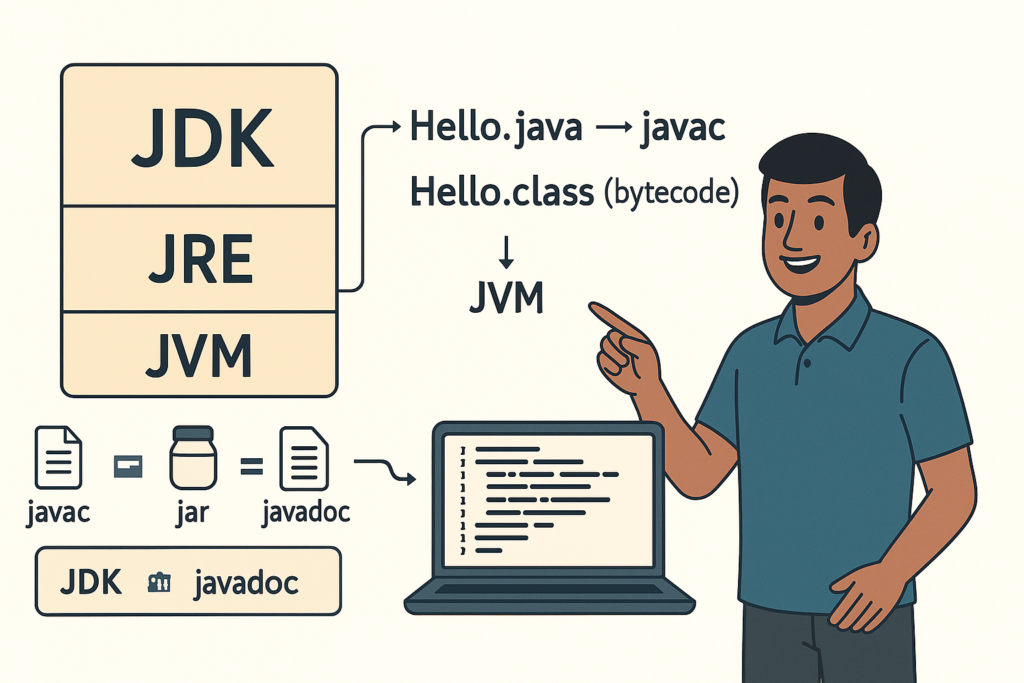
Core ideaTo understand JDK, JRE, and JVM, first you must understand how Java programs work. Java does not directly run your .java source code like a simple script. Instead, Java follows a two-step approach:
- Step A — Compile: Convert your .java file into .class bytecode.
- Step B — Run: JVM executes that bytecode on your device.
Source Code           Compile            Bytecode            Run
----------           ---------          ----------          ----
Hello.java --> javac --> Hello.class --> java (JVM)Now, where do JDK, JRE, and JVM fit into this picture? Very simply:
- JDK helps you compile + develop Java programs.
- JRE helps you run Java programs.
- JVM is the engine that actually executes the code.
2) What is JVM?
Java Virtual MachineJVM (Java Virtual Machine) is the runtime engine that executes Java bytecode (.class files). It is called “virtual” because it is not a physical machine, but a software-based machine.
JVM is responsible for:
- Loading your bytecode (class loading)
- Verifying it (security & safety checks)
- Executing it (interpreting or compiling just-in-time)
- Managing memory (garbage collection)
- Handling runtime exceptions
JVM exists in different versions for different operating systems—Windows JVM, Linux JVM, macOS JVM. But your Java program’s bytecode is the same. This is the heart of Java’s portability.
JVM is not only for Java. Other languages like Kotlin, Scala, and Groovy also run on the JVM. That means learning Java also gives you access to a much larger ecosystem.
3) What is JRE?
Java Runtime EnvironmentJRE (Java Runtime Environment) is everything required to run Java applications. Think of JRE as a package that includes:
- JVM (the engine)
- Core libraries (standard Java packages like java.lang, java.util, etc.)
- Support files needed for runtime
If a computer has only JRE installed, it can run Java programs, but it cannot compile them because the compiler (javac) belongs to the JDK.
In the past, users sometimes installed only JRE to run Java-based desktop apps. But today, most developers install a full JDK (which includes everything).
4) What is JDK?
Java Development KitJDK (Java Development Kit) is used by developers to build Java programs. It includes:
- JRE (so you can run programs)
- Compiler (javac) to convert .java → .class
- Developer tools like: jar, javadoc, jdb (debugger), etc.
Many beginners waste time thinking: “Should I install JRE separately?” The answer in most cases: No. Install JDK only. It already provides what you need for development and learning.
The moment you type: javac Hello.java you are using JDK tools. When you type: java Hello you are using the JVM (through the runtime).
5) JDK vs JRE vs JVM (Comparison Table)
Clear difference| Item | Full Form | Main Purpose | Contains | Who needs it? |
|---|---|---|---|---|
| JVM | Java Virtual Machine | Executes Java bytecode | Execution engine + memory management | Anyone running Java programs |
| JRE | Java Runtime Environment | Runs Java applications | JVM + core libraries | Users who only run Java apps |
| JDK | Java Development Kit | Develops + compiles + runs Java apps | JRE + compiler + dev tools | Developers / learners |
One simple formula:
JDK = JRE + Developer Tools
JRE = JVM + Runtime Libraries6) Compile vs Run (javac vs java)
Real commandsBeginners often type commands and get errors. So let’s clearly understand what each command does:
- javac → Compiler (comes with JDK) → converts source code into bytecode.
- java → Runs the program on JVM (runtime) → executes bytecode.
// 1) Compile (creates .class file)
javac HelloWorld.java

// 2) Run (do NOT add .class here)
java HelloWorldWhy don’t we write “.class” while running? Because JVM expects the class name, not the file name. Java uses class names as a unit of execution.
7) What is Bytecode? (Why Java runs everywhere)
Key conceptBytecode is the intermediate code produced by the Java compiler. It is not machine code for Windows or Linux. It is a platform-independent instruction set designed for the JVM.
That is why Java can be cross-platform:
- You compile once to bytecode
- Any device with JVM can run that bytecode
Many modern JVMs also use a technique called JIT (Just-In-Time compilation), which converts frequently-used bytecode parts into fast machine code while the program runs. This helps Java achieve good performance for server applications.
8) Which one should you install?
Beginner choiceIf you are learning Java, writing code, or building projects, install JDK. You do not need to install JRE separately.
| Your goal | Install this | Why |
|---|---|---|
| Learn Java + write programs | JDK | Includes compiler + runtime |
| Only run a Java application | Usually JDK (or runtime bundled) | Today many apps bundle their runtime; JDK is simplest |
| Work on backend (Spring) | JDK | Needed for building and running servers |
9) Common mistakes & fixes (Beginner Troubleshooting)
Fix fastMistake #1: “java is not recognized…”
This usually means Java is installed, but your system PATH is not set properly, or the terminal is not restarted.
// Check Java is available:
java -version
javac -version
Mistake #2: File name and class name mismatch
If your code contains public class HelloWorld then the file should be named HelloWorld.java.
Mistake #3: Trying to run .java directly
Typically you compile first, then run. (Some environments do it automatically, but as a learner you should understand the two-step process.)
10) Mini Example: Compile & Run a Simple Program
Hands-onCopy this code into a file named MiniCalc.java. Then compile and run it.
import java.util.Scanner;

public class MiniCalc {
    public static void main(String[] args) {
        Scanner sc = new Scanner(System.in);

        System.out.print("Enter A: ");
        int a = sc.nextInt();

        System.out.print("Enter B: ");
        int b = sc.nextInt();

        System.out.println("Sum = " + (a + b));
        System.out.println("Diff = " + (a - b));
        System.out.println("Mul = " + (a * b));

        sc.close();
    }
}
// In terminal inside the same folder:
javac MiniCalc.java
java MiniCalcThis simple program proves your JDK is working. In next lessons, we’ll learn variables, data types, operators, and input in detail.
11) FAQ (Most asked doubts)
Quick answersQ1) Can I install only JRE to learn Java?
You can run programs but you can’t compile your own code using javac.
So for learning: install JDK.
Q2) Does JDK include JRE and JVM?
Yes. JDK includes the runtime (JRE/JVM) and also compiler and tools.
Q3) Why do we need JVM at all?
JVM makes Java portable (run on many OS), provides memory management and security checks,
and helps Java perform well in server environments.
Q4) If I learn Java, can I learn Kotlin easily?
Yes. Kotlin runs on JVM and uses similar concepts (classes, OOP, collections).
Java foundation makes Kotlin easier.
12) Practice Tasks (Do it today)
Exercises- Run java -version and javac -version and note the output.
- Create Hello.java, compile and run it using terminal.
- Rename the class name but not the file name. Observe the error. Fix it.
- Try java Hello.class (wrong) and understand why it fails.
- Write a 5-line program that prints your name, city, and “I’m learning Java!”
Recommended Internal Links (SEO)
Keep users learning- Java Course Index (All Lessons)
- Lesson 1 – Java Intro & Use Cases
- Lesson 3 – Variables & Data Types
- Java Installation Guide (Windows)
Replace URLs with your real pages. Internal links improve SEO and reduce bounce rate.