
Tamil Technicians – C Programming Course · File Handling & Text Data
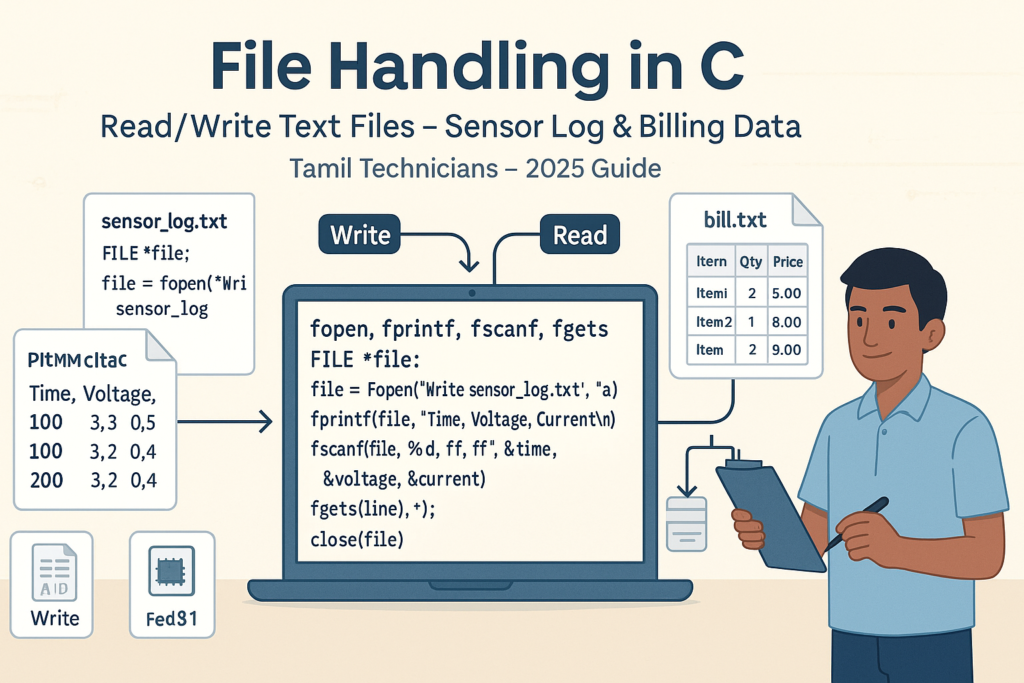
File Handling in C – Read/Write Text Files (Sensor Log, Billing Data Examples)
Until now, most of our C programs have worked only with the screen and the keyboard:
we read values using scanf() and print results using printf(). When the program ends,
all data is gone.
In real life, technicians and engineers often need to:
- Store sensor readings as daily logs (voltage, current, temperature, etc.).
- Save billing data (item, quantity, price, total) to text files.
- Reload this data later for reports, analysis or backups.
That is exactly what file handling in C allows us to do: read and write
data to text files on disk using functions like fopen, fprintf, fscanf,
fgets and fputs.
1. Basics of File Handling in C
C uses a special type called FILE (defined in <stdio.h>) to represent an
open file. You work with pointers to FILE:
#include <stdio.h>

int main() {
    FILE *fp;   // pointer to a FILE structure
    // ...
    return 0;
}
Important file handling functions
| Function | Purpose |
|---|---|
fopen() |
Open a file and return a FILE* pointer. |
fclose() |
Close an opened file and free resources. |
fprintf() |
Write formatted text to a file (like printf but to a file). |
fscanf() |
Read formatted text from a file (like scanf but from a file). |
fgets() |
Read one line (string) from a file. |
fputs() |
Write a string to a file. |
Opening a file – fopen()
Syntax:
FILE *fopen(const char *filename, const char *mode);Common modes for text files:
| Mode | Meaning | If file doesn’t exist? |
|---|---|---|
"r" |
Open for reading (text). | Open fails (returns NULL). |
"w" |
Open for writing (text). Truncates existing file to zero length. | Creates a new empty file. |
"a" |
Open for appending (text). Writes go to end of file. | Creates a new file if it doesn’t exist. |
"r+" |
Open for reading and writing (text). | Open fails if file doesn’t exist. |
"w+" |
Open for reading and writing (text), truncating file. | Creates a new file. |
2. Writing a Simple Text File – First Example
Let’s create a simple text file hello.txt with one line of text.
#include <stdio.h>

int main() {
    FILE *fp;
    fp = fopen("hello.txt", "w");  // open for writing

    if (fp == NULL) {
        printf("Error opening file!\\n");
        return 1;  // exit with error
    }

    fprintf(fp, "Hello, file handling in C!\\n");

    fclose(fp);   // important to close
    printf("File written successfully.\\n");
    return 0;
}
After running this program, you should see a file called hello.txt in the same folder as your
executable, containing that line of text.
fopen() returns NULL. If it does, something went wrong
(path wrong, permission issue, etc.), and you must handle the error.
3. Writing Sensor Logs to a Text File (fprintf)
Now, let’s look at a real technician-style use case: storing sensor readings (time, voltage, current) into a daily log file.
Example: write sensor data to sensor_log.txt
#include <stdio.h>

int main() {
    FILE *fp;
    fp = fopen("sensor_log.txt", "w");  // overwrite if exists

    if (fp == NULL) {
        printf("Cannot open sensor_log.txt for writing!\\n");
        return 1;
    }

    // header line
    fprintf(fp, "Time,Voltage(V),Current(A)\\n");

    // pretend readings
    fprintf(fp, "10:00,230.5,12.3\\n");
    fprintf(fp, "10:05,229.8,11.9\\n");
    fprintf(fp, "10:10,231.2,12.1\\n");

    fclose(fp);
    printf("Sensor log written successfully.\\n");
    return 0;
}
The resulting file might look like:
Time,Voltage(V),Current(A)
10:00,230.5,12.3
10:05,229.8,11.9
10:10,231.2,12.14. Writing Billing Data to a Text File (Simple Bill)
Let’s build a small billing example where the user enters item name, quantity and price, and the program
writes them to bill.txt.
#include <stdio.h>

int main() {
    FILE *fp;
    char item[40];
    int quantity;
    float price;

    fp = fopen("bill.txt", "w");   // start a fresh bill
    if (fp == NULL) {
        printf("Could not open bill.txt for writing!\\n");
        return 1;
    }

    fprintf(fp, "Item,Quantity,Price,Total\\n");

    // Example: three items (in real program, you might loop with user input)
    // 1st item
    sprintf(item, "Solder Wire 100g");
    quantity = 2;
    price = 150.0f;
    fprintf(fp, "%s,%d,%.2f,%.2f\\n", item, quantity, price, quantity * price);

    // 2nd item
    sprintf(item, "Flux 50g");
    quantity = 1;
    price = 80.0f;
    fprintf(fp, "%s,%d,%.2f,%.2f\\n", item, quantity, price, quantity * price);

    // 3rd item
    sprintf(item, "Multimeter Basic");
    quantity = 1;
    price = 650.0f;
    fprintf(fp, "%s,%d,%.2f,%.2f\\n", item, quantity, price, quantity * price);

    fclose(fp);
    printf("Bill saved to bill.txt\\n");
    return 0;
}
You now have a small billing log that could be used as a simple record of sales.
5. Append Mode – Adding New Data Without Erasing Old
If you use mode "w", the previous contents of the file are erased. To keep old data and
just add new lines at the end, use "a" (append).
Example: append new sensor readings to existing log
#include <stdio.h>

int main() {
    FILE *fp = fopen("sensor_log.txt", "a");  // open in append mode

    if (fp == NULL) {
        printf("Cannot open sensor_log.txt in append mode!\\n");
        return 1;
    }

    // new readings
    fprintf(fp, "10:15,230.7,12.0\\n");
    fprintf(fp, "10:20,231.0,12.4\\n");

    fclose(fp);
    printf("New readings appended to sensor_log.txt\\n");
    return 0;
}
Now the old data remains, and new rows are added at the end.
6. Reading Text Files with fscanf()
To read formatted data back from a file, we use fscanf() in a way similar to scanf().
Example: reading sensor_log.txt
#include <stdio.h>
int main() {
FILE *fp = fopen("sensor_log.txt", "r");
if (fp == NULL) {
printf("Could not open sensor_log.txt for reading!\\n");
return 1;
}
char time[10];
float voltage, current;
// Skip header line (simplest: read and discard)
char header[100];
fgets(header, sizeof(header), fp);
// Read until end of file
while (fscanf(fp, "%9[^,],%f,%f", time, &voltage, ¤t) == 3) {
printf("Time: %s, V: %.1f, I: %.2f\\n", time, voltage, current);
}
fclose(fp);
return 0;
}
Here we used the format "%9[^,]" to read characters up to a comma into time.
This is a slightly advanced use of fscanf, but very useful for CSV-like data.
fscanf. It returns the number of successfully read items.
If it doesn’t match the expected count, stopping the loop is the safest option.
7. Reading Lines with fgets() (Safer for Strings)
For many tasks, it’s easier and safer to read a whole line of text using fgets() and then
process it manually if needed.
#include <stdio.h>

int main() {
    FILE *fp = fopen("bill.txt", "r");
    if (fp == NULL) {
        printf("Could not open bill.txt for reading!\\n");
        return 1;
    }

    char line[200];

    while (fgets(line, sizeof(line), fp) != NULL) {
        printf("%s", line);  // each line already ends with \n
    }

    fclose(fp);
    return 0;
}
With fgets(), you protect yourself against buffer overflow because you specify the buffer size.
8. Mini-Project: Simple Billing Report from File
Let’s build a slightly more complete example. We will:
- Write a billing file with multiple items.
- Read the file and calculate the grand total.
Step 1: Write bill data
#include <stdio.h>

int main() {
    FILE *fp = fopen("bill_data.txt", "w");
    if (fp == NULL) {
        printf("Cannot open bill_data.txt for writing!\\n");
        return 1;
    }

    fprintf(fp, "Item,Qty,Price,Total\\n");
    fprintf(fp, "LED Bulb 9W,4,120.00,480.00\\n");
    fprintf(fp, "Fan Capacitor,2,90.00,180.00\\n");
    fprintf(fp, "Service Charge,1,250.00,250.00\\n");

    fclose(fp);
    printf("Billing data written to bill_data.txt\\n");
    return 0;
}
Step 2: Read bill data and calculate grand total
#include <stdio.h>

int main() {
    FILE *fp = fopen("bill_data.txt", "r");
    if (fp == NULL) {
        printf("Cannot open bill_data.txt for reading!\\n");
        return 1;
    }

    char line[256];
    char item[80];
    int qty;
    float price, total, grandTotal = 0.0f;

    // skip header
    fgets(line, sizeof(line), fp);

    // read each line
    while (fgets(line, sizeof(line), fp) != NULL) {
        // parse: Item,Qty,Price,Total
        if (sscanf(line, "%79[^,],%d,%f,%f", item, &qty, &price, &total) == 4) {
            printf("%s | Qty: %d | Price: %.2f | Total: %.2f\\n",
                   item, qty, price, total);
            grandTotal += total;
        }
    }

    printf("---------------------------\\n");
    printf("Grand total: %.2f\\n", grandTotal);

    fclose(fp);
    return 0;
}
This kind of pattern is very common: you store simple text data in a file, then later read it back to build summary reports.
9. File Paths, Newlines & Common Pitfalls
9.1 Relative vs absolute paths
- Relative path:
"sensor_log.txt"– file will be created in the program’s current working directory. - Absolute path:
"C:\\data\\sensor_log.txt"(on Windows),"/home/user/sensor_log.txt"(on Linux).
"C:\\folder\\file.txt", not "C:\folder\file.txt".
9.2 Newline \n
- On Windows,
\nusually becomes\r\nin the text file, handled automatically. - On Linux/macOS,
\nis just newline. - Always add
\nat the end of each record line to keep files readable.
9.3 Forgetting fclose()
If you don’t call fclose(), data may not be fully written to disk and file handles can leak.
Always close files when you’re done.
10. Text Files vs Binary Files (Quick Note)
In this lesson, we focused on text files – human-readable, line-based formats.
C also supports binary files using modes like "rb", "wb", with
functions such as fread() and fwrite().
Binary files are more compact and faster for large data, but text files are easier to debug and inspect. For many technician-style tasks (logs, billing, simple reports), text files are perfectly sufficient.
11. Learning Checklist – File Handling in C
- I understand what
FILEandFILE*represent in C. - I can open a text file using
fopen()with the correct mode. - I always check for
NULLafter callingfopen(). - I can write text to a file using
fprintf()andfputs(). - I can read text from a file using
fscanf()andfgets(). - I understand the difference between
"w"(overwrite) and"a"(append). - I can build simple mini-projects like sensor logs and billing reports using files.
- I remember to call
fclose()when done with a file.
Suggested Featured Image Prompt
Use this prompt in your AI image generator for the thumbnail of this blog post:
FAQ: File Handling in C
1. Why should I use files instead of just printf and scanf?
printf and scanf only work while the program is running and do not store
data permanently. Files allow you to save logs, billing records, and configuration information
on disk so that you can read them later, share them, or process them with other tools.
2. When should I use the append mode “a” instead of “w”?
Use "a" when you want to keep existing data and add new lines at the end of a text file
(for example, daily sensor readings or new sales in a billing file). Use "w" when you
want to start fresh and overwrite the file completely.
3. What is the difference between fscanf and fgets for reading?
fscanf reads formatted data according to a format string (like numbers separated by commas),
but can be tricky and unsafe if the format does not match exactly. fgets reads
an entire line as a string safely, and then you can parse it with sscanf or string functions.
For many tasks, using fgets + sscanf is safer and more flexible.
4. Why does fopen sometimes return NULL even if the path looks correct?
fopen returns NULL if the file cannot be opened for any reason:
the directory may not exist, the program may not have permission to access the location, or
the path may contain a small typo. On Windows, backslashes need to be written as double backslashes
(e.g., "C:\\data\\file.txt").
external link’s :
Contact link :
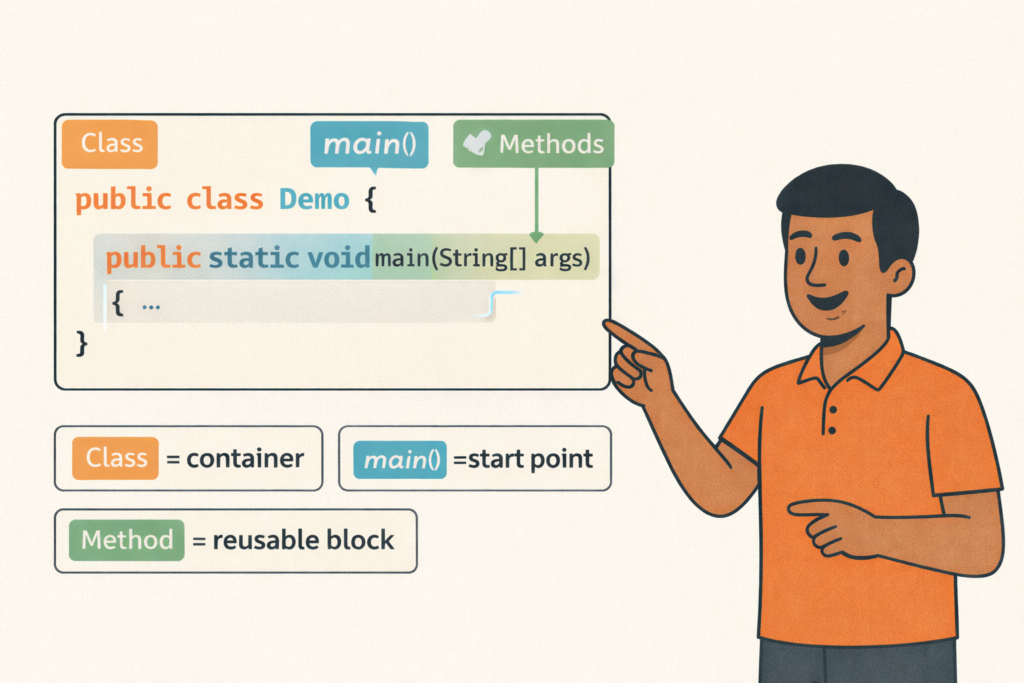
Java Program Structure (Class, main, Methods)– Full Beginner Explanation
Java Program Structure (Class, main, Methods) – Beginner Guide | Tamil Technicians TT Tamil Technicians…

Install JDK + VS Code/IntelliJ Setup+ Your First Java Program (Windows)
Install JDK + VS Code/IntelliJ Setup + First Java Program (Windows) | Tamil Technicians TT…
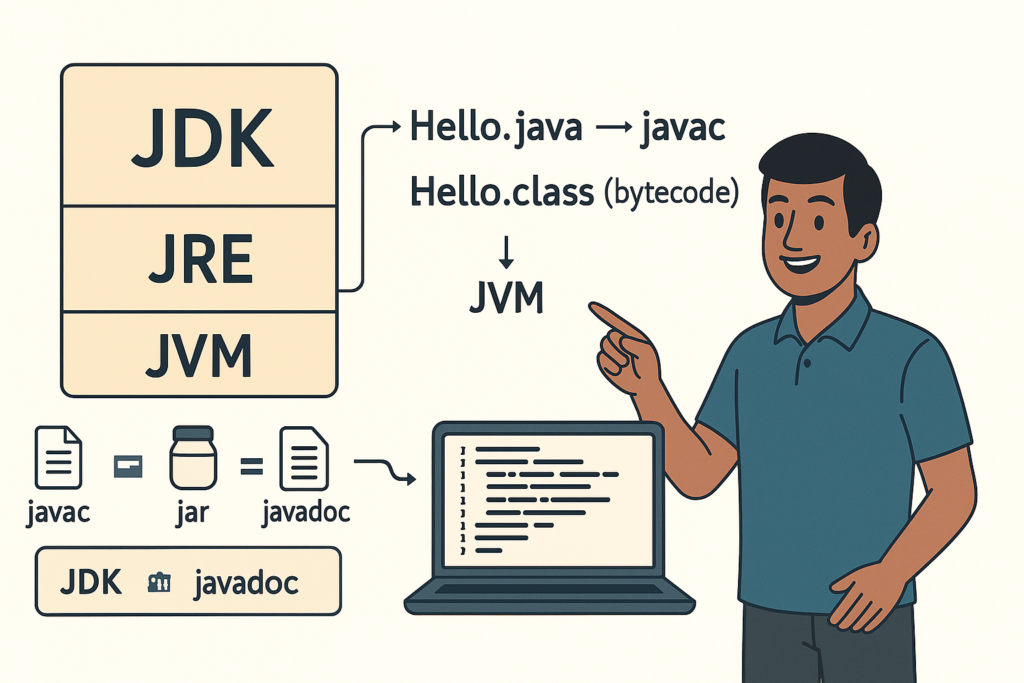
JDK vs JRE vs JVM – Easy Explanation(Compile & Run Flow for Beginners)
JDK vs JRE vs JVM – Easy Explanation (Beginner Guide) | Tamil Technicians TT Tamil…
Java Introduction & Where Java is Used(Apps, Web, Banking, Android)
Java Introduction & Where Java is Used (Apps, Web, Banking, Android) | Tamil Technicians TT…
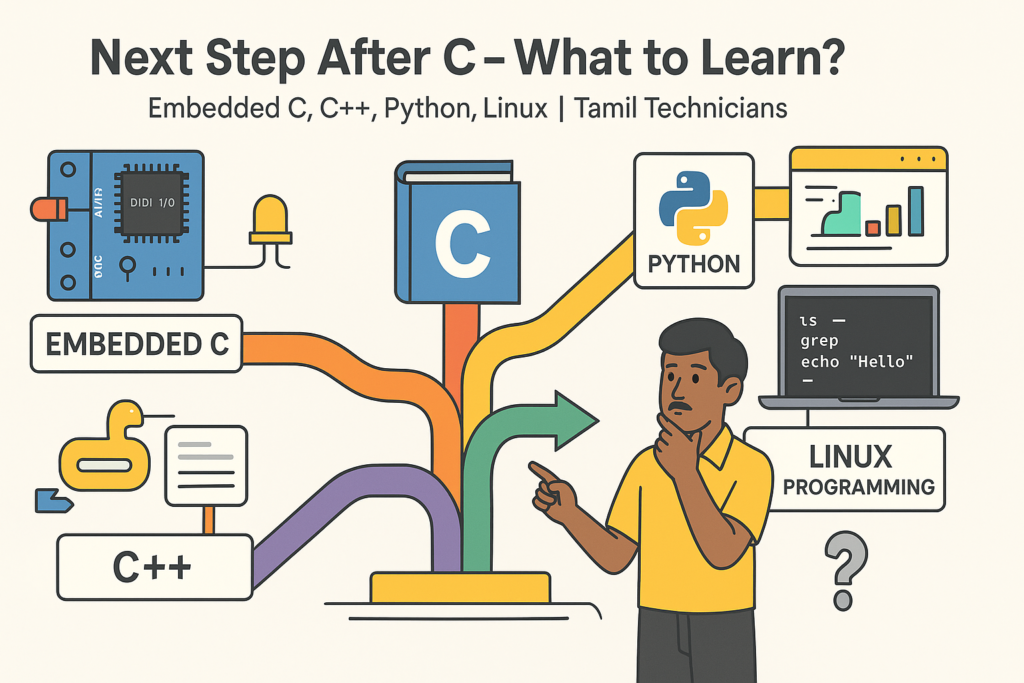
Next Step After C – What to Learn? (Embedded C, C++, Python, Linux Programming)
Next Step After C – What to Learn? (Embedded C, C++, Python, Linux Programming) |…
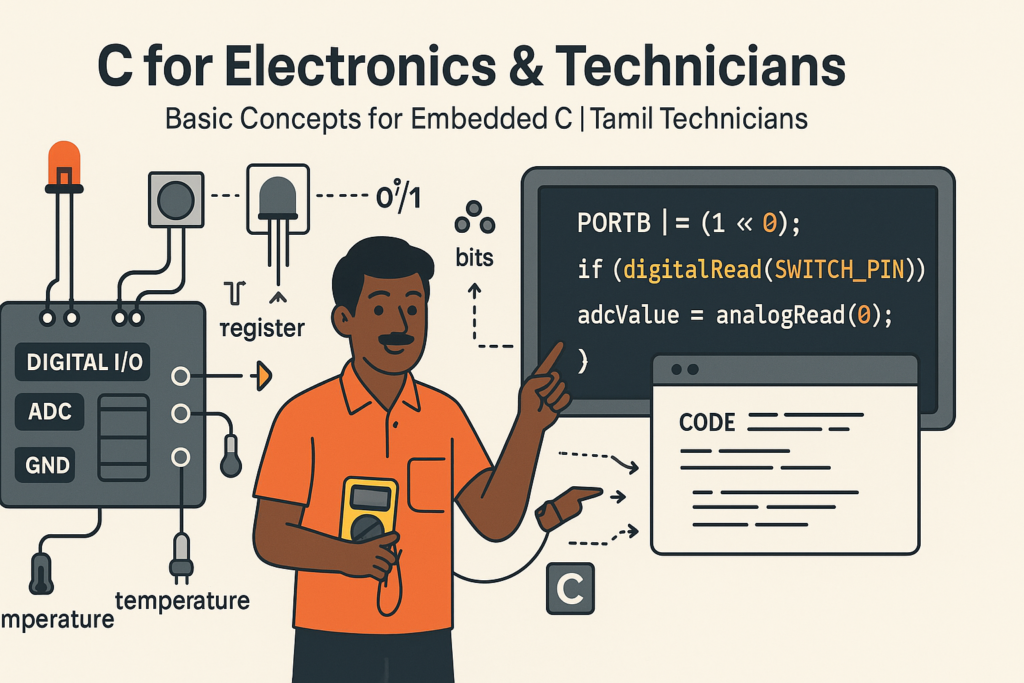
C for Electronics & Technicians – Basic Concepts for Embedded C
C for Electronics & Technicians – Basic Concepts for Embedded C | Tamil Technicians Tamil…
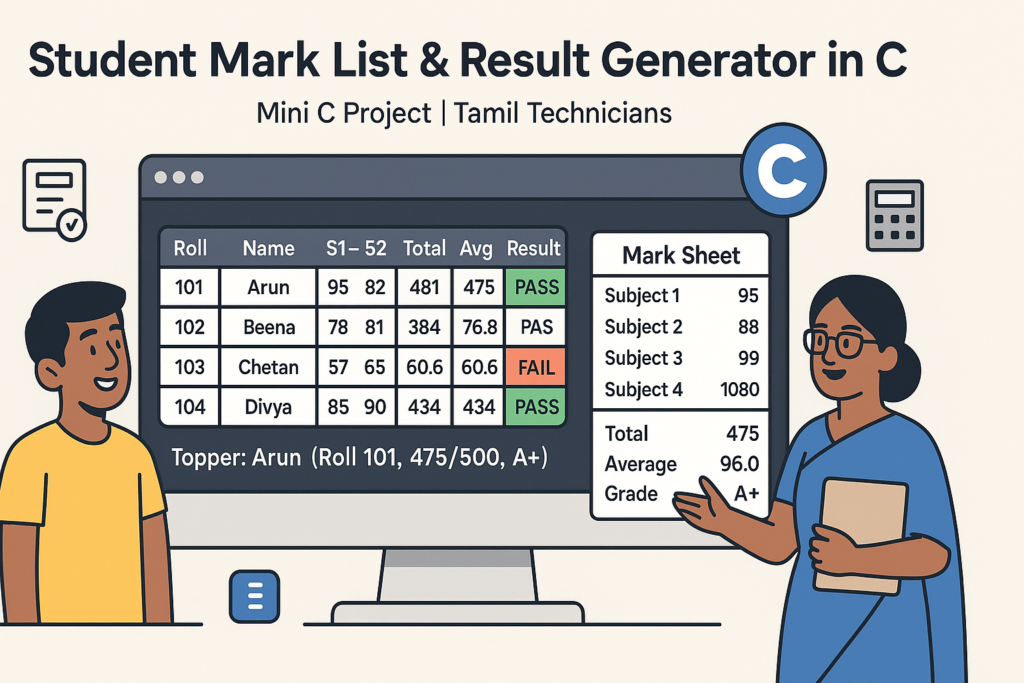
Mini C Project – Student Mark List & Result Generator in C (Console Project)
Mini C Project – Student Mark List & Result Generator in C (Console Project) |…
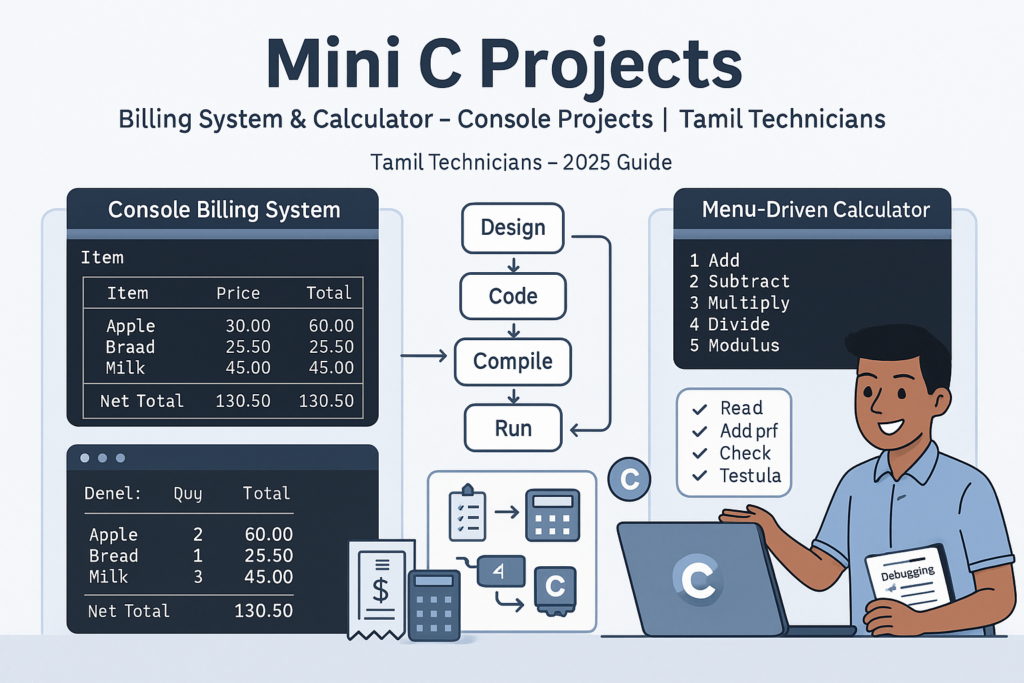
Mini C Projects – Simple Billing System & Calculator in C (Console Projects)
Mini C Projects – Simple Billing System & Calculator in C (Console Projects) | Tamil…
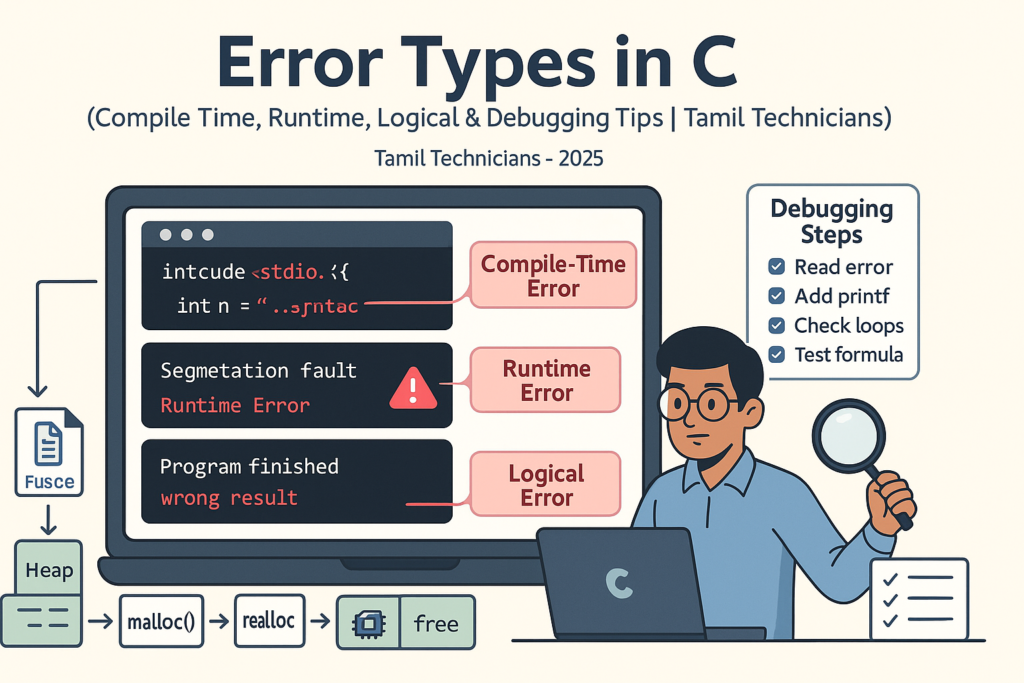
Error Types in C – Compile Time, Runtime, Logical Errors & Debugging Tips 2025
Error Types in C – Compile Time, Runtime, Logical Errors & Debugging Tips | Tamil…
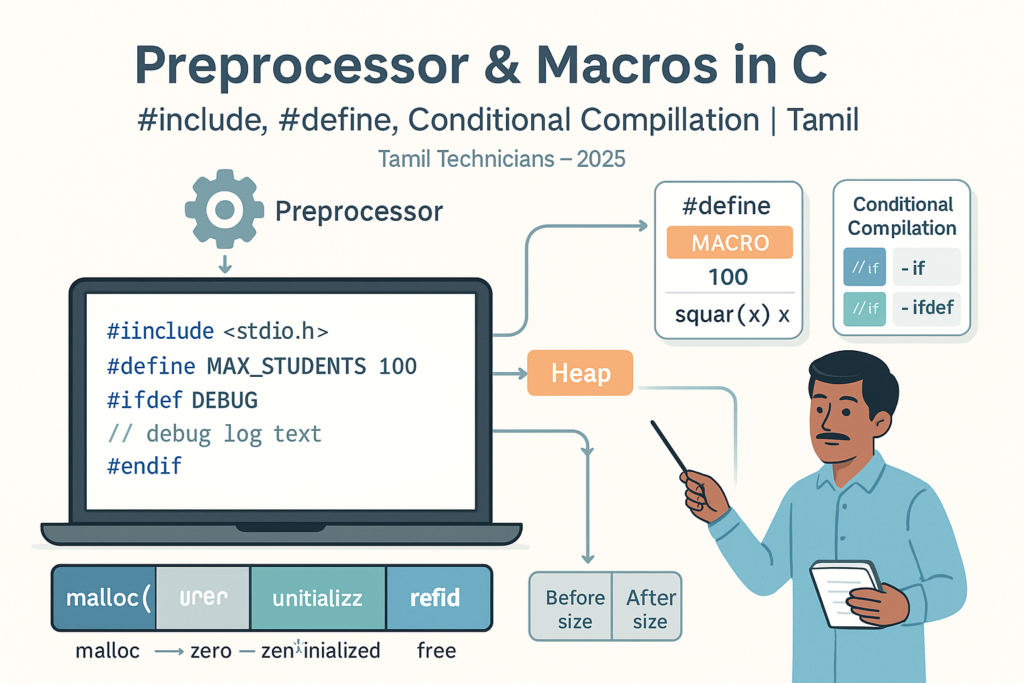
Preprocessor & Macros in C – #include, #define, Conditional Compilation
Preprocessor & Macros in C – #include, #define, Conditional Compilation | Tamil Technicians Tamil Technicians…

Dynamic Memory Allocation – malloc(), calloc(), realloc(), free() Basics
Dynamic Memory Allocation in C – malloc(), calloc(), realloc(), free() Basics | Tamil Technicians Tamil…
File Handling in C – Read/Write Text Files (Sensor Log, Billing Data Examples) 2025
File Handling in C – Read/Write Text Files (Sensor Log, Billing Data Examples) | Tamil…
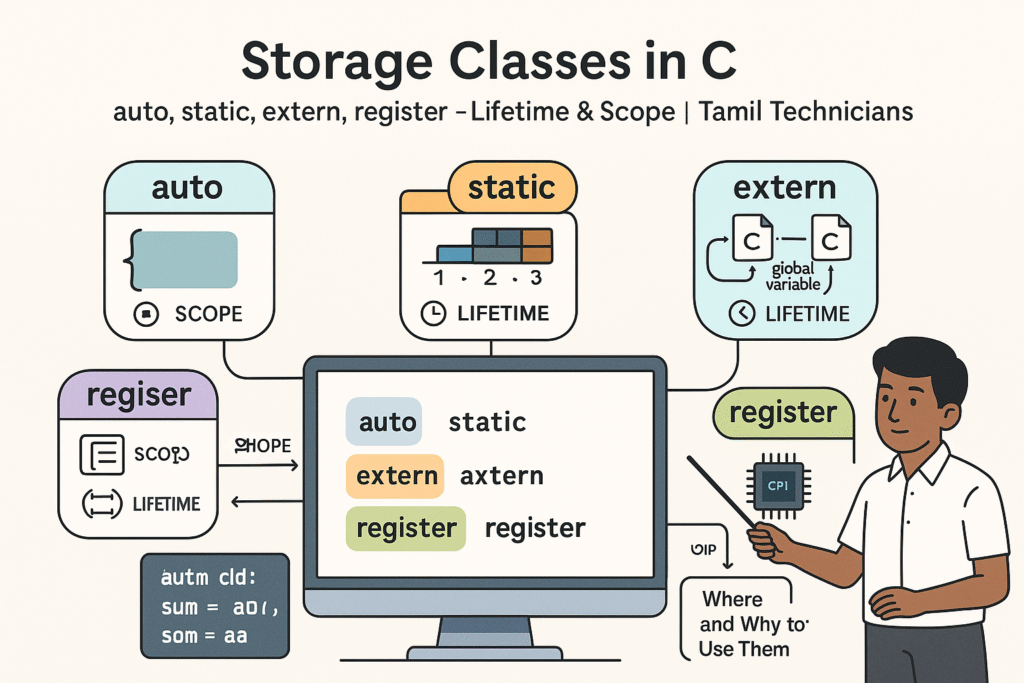
Storage Classes in C – auto, static, extern, register (Lifetime & Scope)
Storage Classes in C – auto, static, extern, register (Lifetime & Scope) | Tamil Technicians…

Structures in C – Struct with Examples (Student, Product, Device Data)
Structures in C – Struct with Examples (Student, Product, Device Data) | Tamil Technicians Tamil…
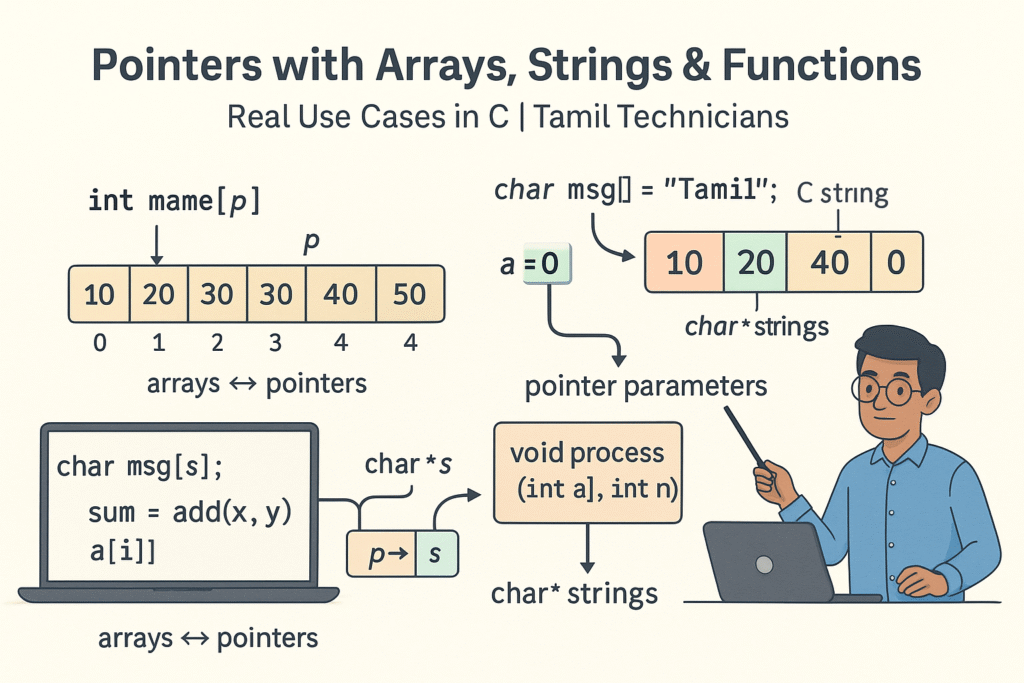
Pointers with Arrays, Strings & Functions – Real Use Cases
Pointers with Arrays, Strings & Functions – Real Use Cases | Tamil Technicians Tamil Technicians…
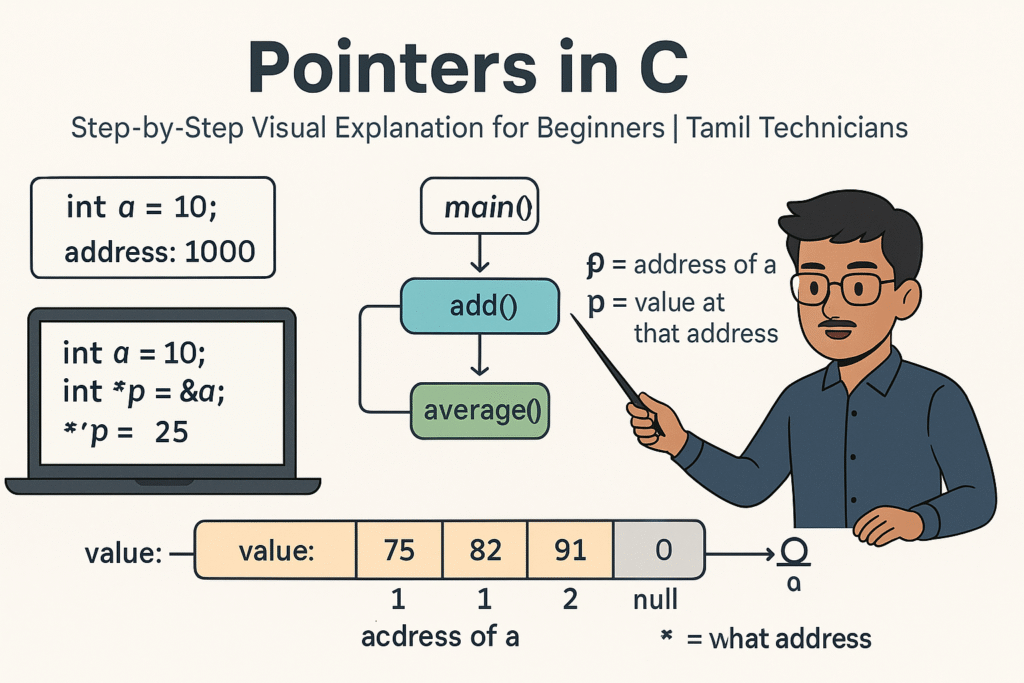
Pointers in C – Step-by-Step Visual Explanation for Beginners
Pointers in C – Step-by-Step Visual Explanation for Beginners | Tamil Technicians Tamil Technicians –…
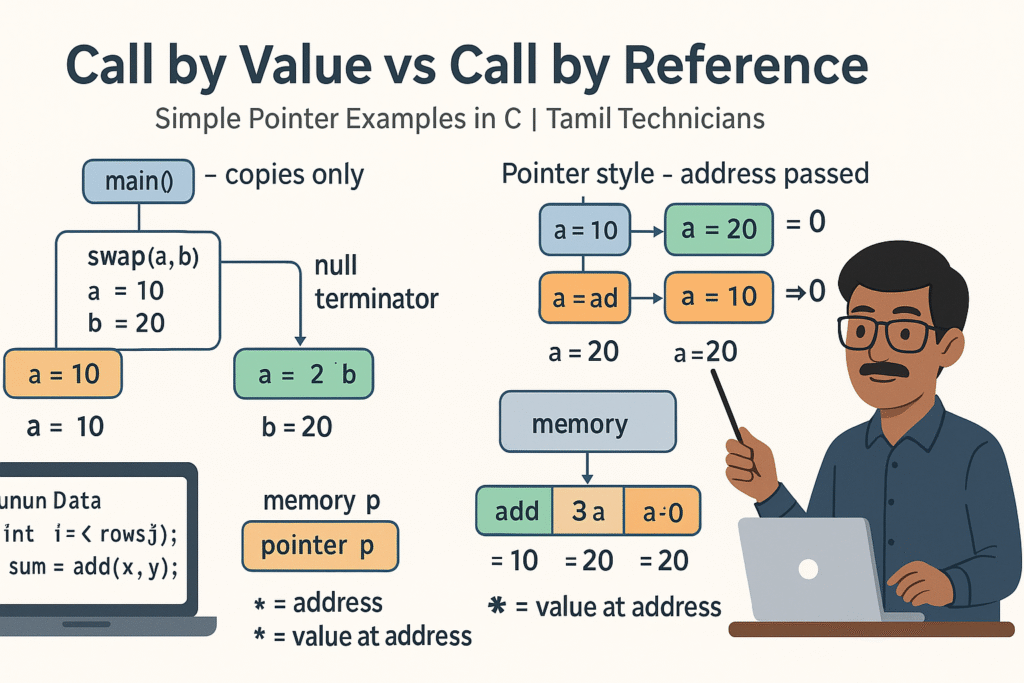
Call by Value vs Call by Reference – Simple Pointer Examples in Tamil
Call by Value vs Call by Reference – Simple Pointer Examples in Tamil | Tamil…
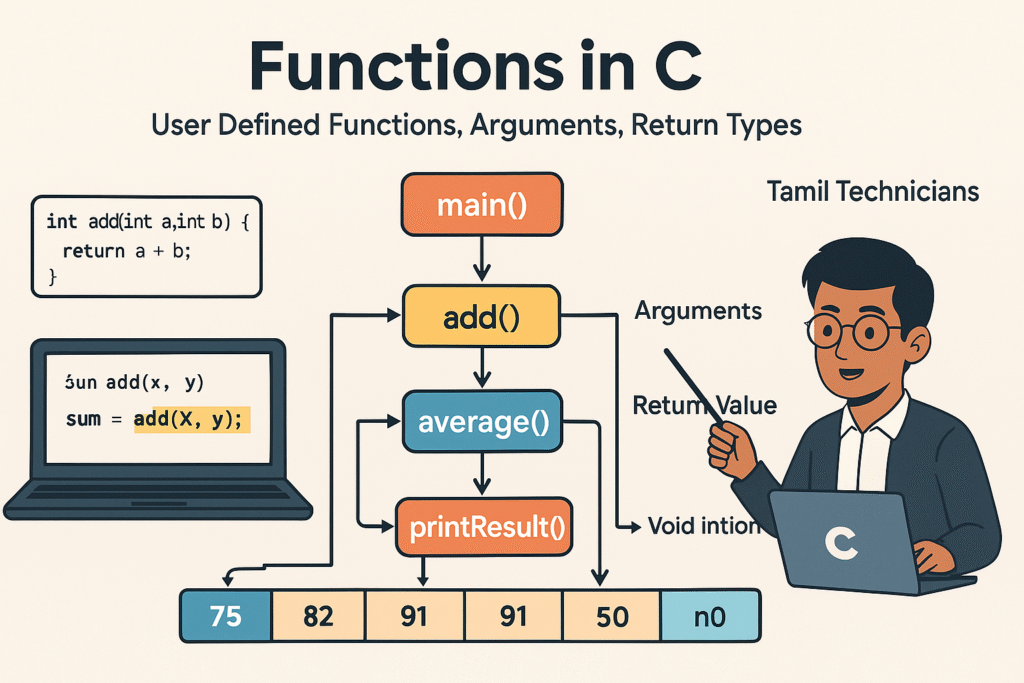
Functions in C – User Defined Functions, Arguments, Return Types
Functions in C – User Defined Functions, Arguments, Return Types | Tamil Technicians Tamil Technicians…
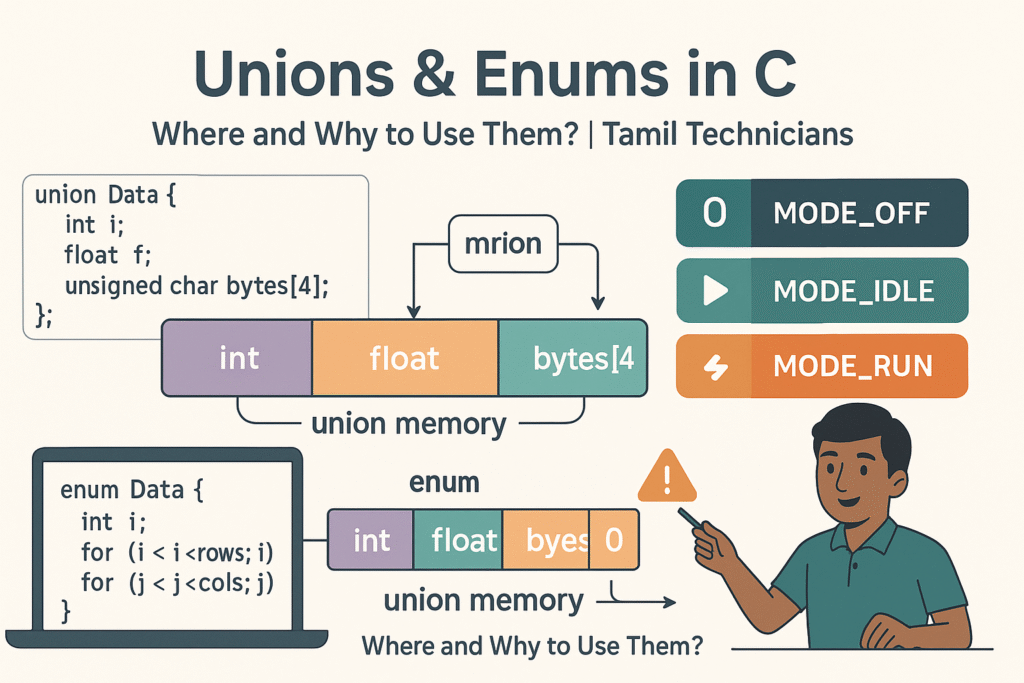
Unions & Enums in C – Where and Why to Use Them?
Unions & Enums in C – Where and Why to Use Them? | Tamil Technicians…
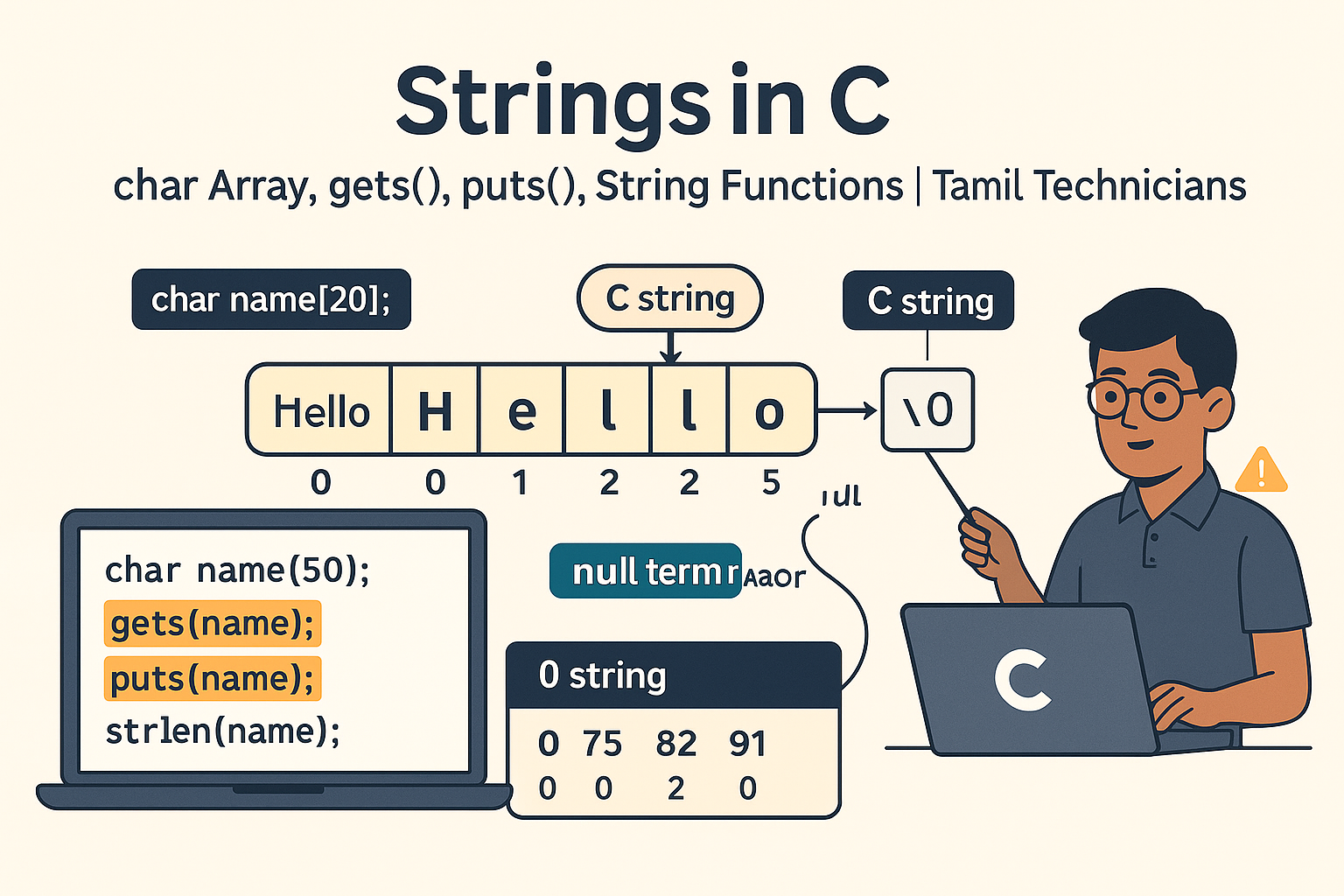
Strings in C – char Array, gets(), puts(), String Functions (strlen, strcpy, etc.)
Strings in C – char Array, gets(), puts(), String Functions (strlen, strcpy, etc.) | Tamil…
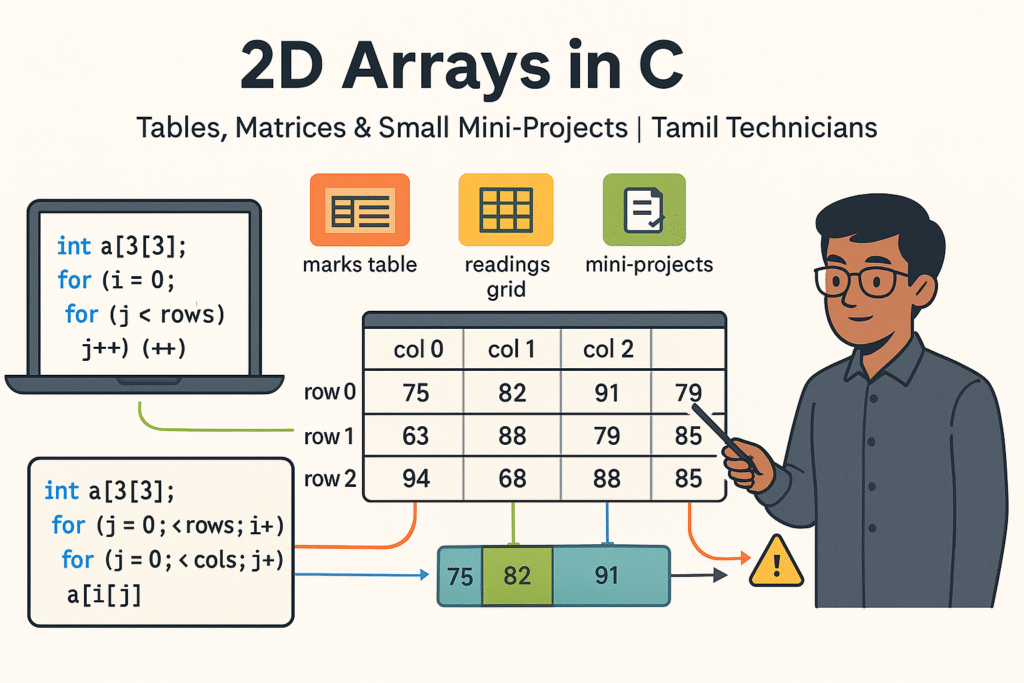
2D Arrays in C – Tables, Matrices & Small Mini-Projects
2D Arrays in C – Tables, Matrices & Small Mini-Projects | Tamil Technicians Tamil Technicians…
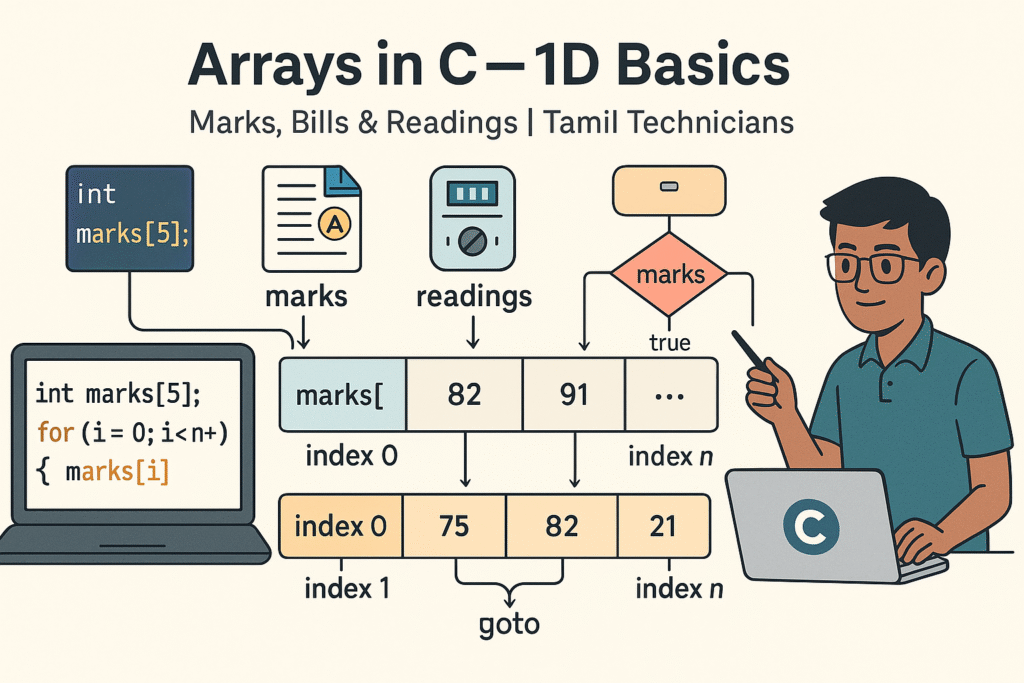
Arrays in C – 1D Array Basics with Practical Examples (Marks, Bills, Readings)
Arrays in C – 1D Array Basics with Practical Examples (Marks, Bills, Readings) | Tamil…
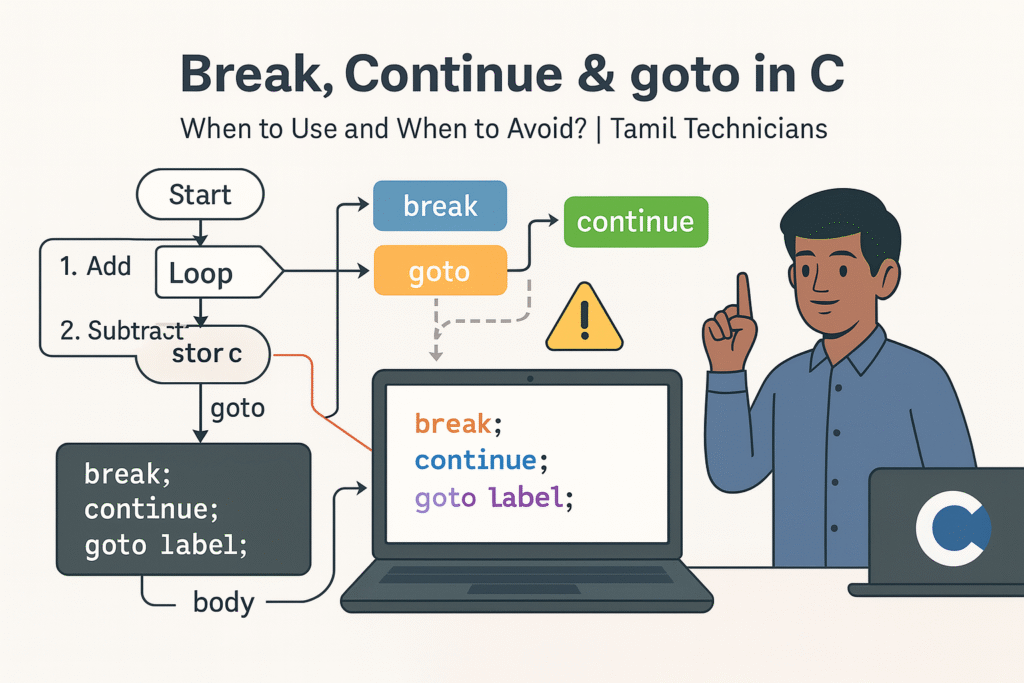
Break, Continue & goto in C – When to Use and When to Avoid?
Break, Continue & goto in C – When to Use and When to Avoid? |…

Loops in C – for, while, do-while Complete Guide (Patterns & Practice)
Loops in C – for, while, do-while Complete Guide (Patterns & Practice) | Tamil Technicians…
switch–case in C – Menu Programs & Real Life Examples for Technicians
switch–case in C – Menu Programs & Real Life Examples for Technicians | Tamil Technicians…
Control Statements in C – if, if-else, nested if, else-if ladder (Tamil Explanation)
Control Statements in C – if, if-else, nested if, else-if ladder (Tamil Explanation) | Tamil…
Operators in C – Arithmetic, Relational, Logical & Assignment (with Examples)
Operators in C – Arithmetic, Relational, Logical & Assignment (with Examples) | Tamil Technicians Tamil…
Input & Output in C – printf(), scanf() Step-by-Step Guide 2025
Input & Output in C – printf(), scanf() Step-by-Step Guide | Tamil Technicians Tamil Technicians…

C Variables, Data Types & Constants Explained in Simple Tamil
C Variables, Data Types & Constants Explained in Simple Tamil | Tamil Technicians Tamil Technicians…
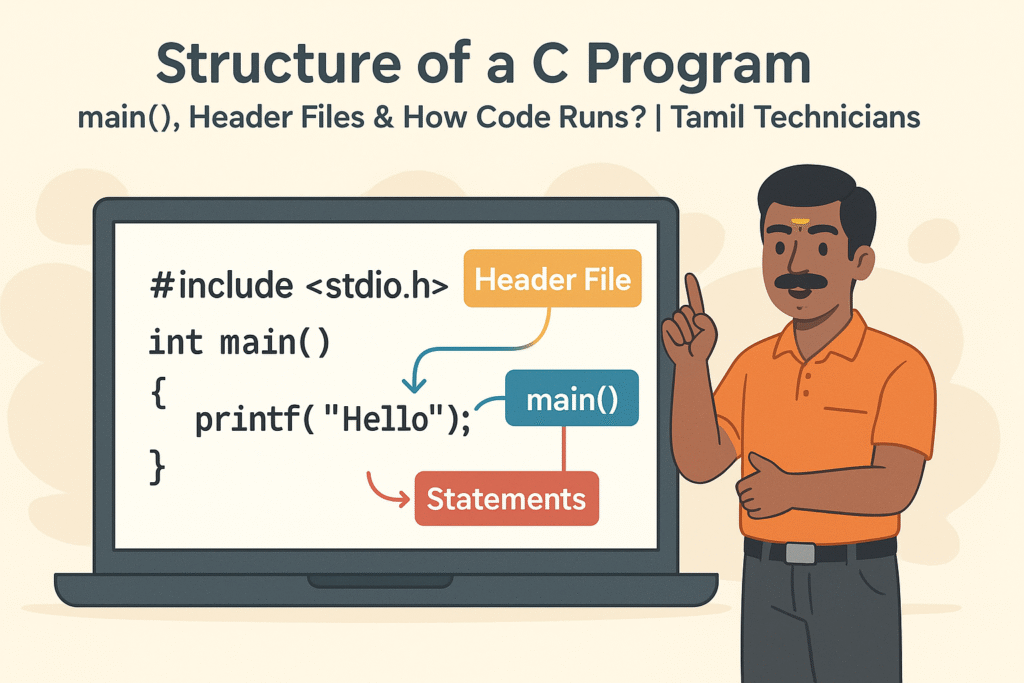
Structure of a C Program – main(), Header Files & How Code Runs?
Structure of a C Program – main(), Header Files & How Code Runs? | Tamil…
What is Programming & Why C is Important? (C Programming in Tamil for Beginners) | Tamil Technicians
What is Programming & Why C is Important? (C Programming in Tamil for Beginners) |…

C Language Introduction & Setup Guide for Beginners 2025
C Language Course Introduction & Setup Guide (Windows, Linux, macOS) | Tamil Technicians Tamil Technicians…