Tamil Technicians – C Language Course Starter Guide
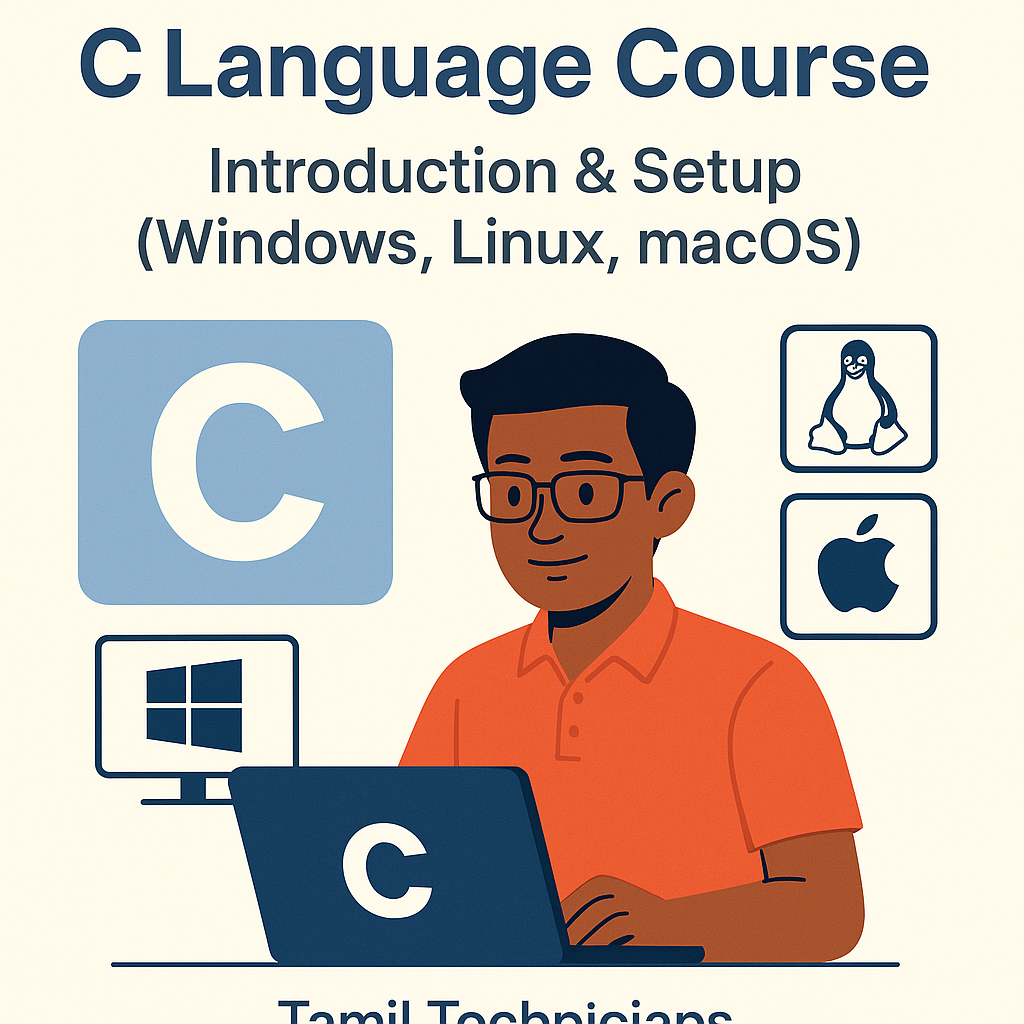
C Language Introduction & Setup Guide for Beginners (Windows, Linux, macOS)
In this article, we will create a strong base for our C Language Course on Tamil Technicians. You will learn what C programming is, why it is still powerful today, and how to install all the required software and tools on Windows, Linux, and macOS to start coding your first C programs.
What Is C Programming Language?
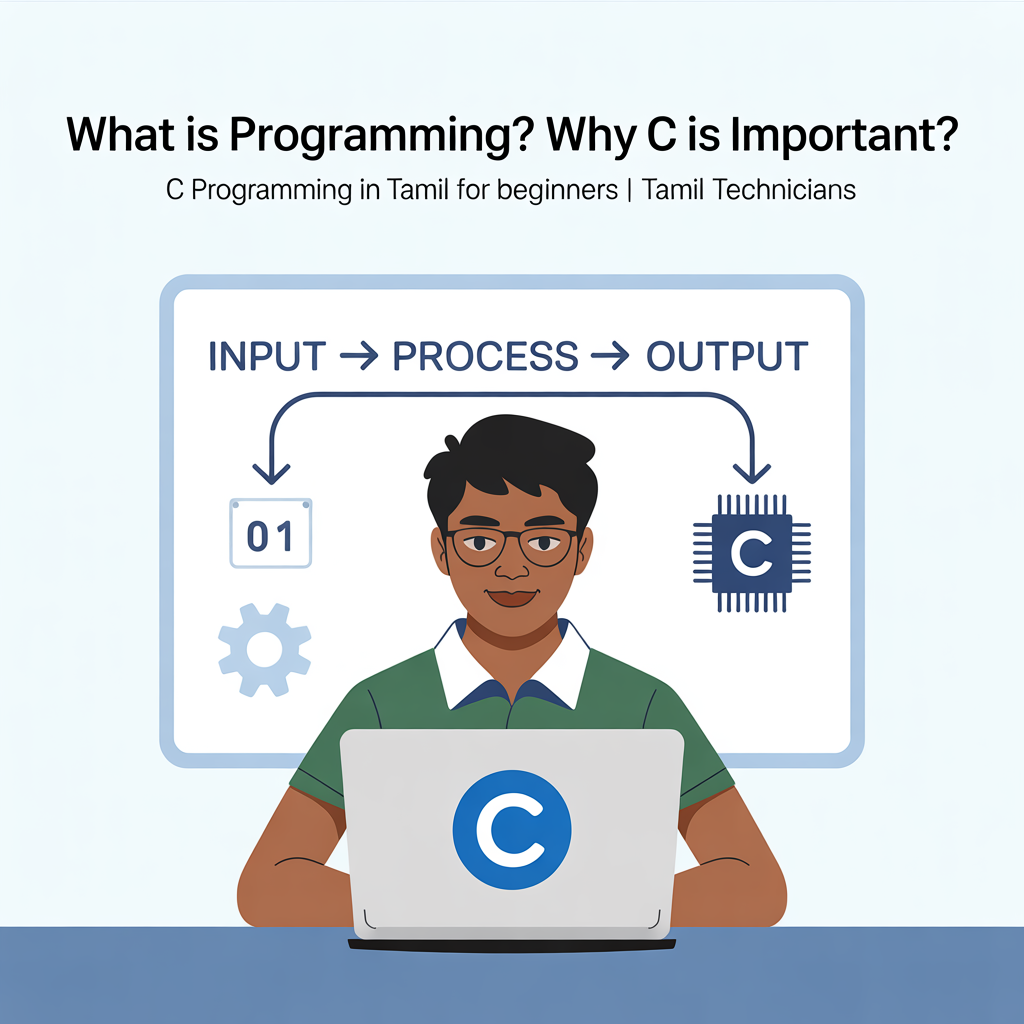
C is a general-purpose, procedural programming language created in the early 1970s by Dennis Ritchie at Bell Labs. It was originally designed to build operating systems, especially UNIX. Even today, many modern languages (like C++, Java, C#, and even parts of Python implementations) are heavily inspired by C.
In simple words: if you understand C well, learning other languages becomes much easier. This is why many colleges, training centers, and embedded systems companies still prefer C as the first language for programmers.
Why Should You Learn C Today?
- Strong foundation: C teaches you how memory works (stack, heap), how data is stored, and how your program talks to hardware.
- Used in electronics & embedded: Microcontrollers, firmware, device drivers, and operating systems often use C or Embedded C.
- Interview-friendly: Many programming and logic interview questions are based on C concepts (arrays, pointers, strings, structures).
- Fast and efficient: C code is closer to machine level, so it is usually faster and more efficient than many high-level languages.
- Easy to move to other languages: Once you know C, moving to C++, Java, Go, Rust, or Python is smoother.
Software & Tools You Need for C Programming
To start writing and running C programs, you mainly need two things:
- A Text Editor or IDE – where you write your C code (for example: VS Code, Code::Blocks).
- A C Compiler – which converts your C code into an executable program (for example: GCC, Clang, MSVC).
Popular Choices (Beginner Friendly)
- VS Code + GCC (MinGW-w64) – Recommended for Windows beginners.
- Code::Blocks (with built-in compiler) – All-in-one IDE for Windows & Linux.
- GCC + Any editor (Linux) – Most Linux distributions already support this.
- Xcode Command Line Tools + VS Code (macOS) – Good combination for Mac users.
C Language Setup on Windows
We will use GCC compiler (MinGW-w64) and Visual Studio Code as the editor.
Step 1: Install Visual Studio Code
- Go to the official Visual Studio Code website (search:
Download VS Code). - Download the Windows installer (.exe).
- Run the installer and follow the default options (Next → Next → Install).
- Open VS Code once installation is complete.
Step 2: Install GCC Compiler (MinGW-w64)
- Search for “MinGW-w64 download” in your browser and go to the official source or well-known mirrors.
- Download the installer for 64-bit Windows.
- During installation, choose:
- Architecture: x86_64
- Threads: posix
- Exception: seh
- Note the installation directory, for example:
C:\mingw-w64\bin
Step 3: Add GCC to System PATH
- Press Win + R, type
sysdm.cpland press Enter. - Go to Advanced tab → click Environment Variables….
- Under System variables, select Path → click Edit.
- Click New and paste your MinGW
binpath, for example:C:\mingw-w64\bin. - Click OK on all dialogs to save.
- Open Command Prompt and type:
If you see version information, your compiler is installed correctly.gcc --version
Step 4: Install C/C++ Extension in VS Code
- Open VS Code.
- Click on the Extensions icon (left sidebar) or press
Ctrl + Shift + X. - Search for “C/C++” by Microsoft and click Install.
Step 5: Test a Simple C Program
- Create a new folder, e.g.,
C:\c-programs. - Open VS Code → File → Open Folder… → select
c-programs. - Create a new file
hello.cwith the following content:
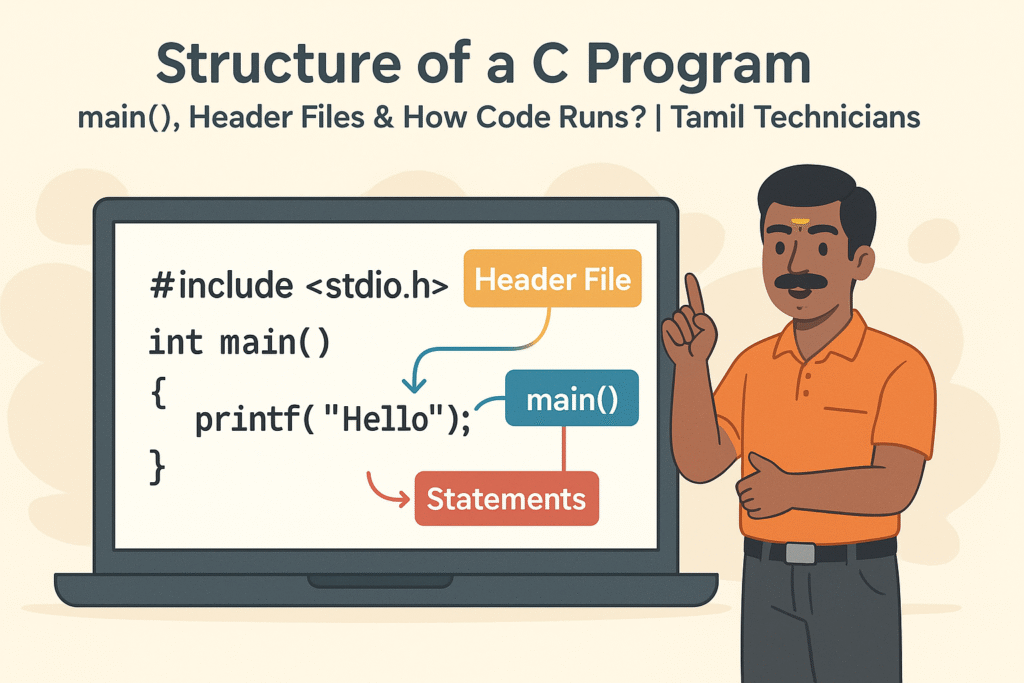
#include <stdio.h>

int main() {
    printf("Hello, C from Tamil Technicians!\\n");
    return 0;
}- Open Terminal in VS Code:
Terminal → New Terminal. - Compile and run:
gcc hello.c -o hello hello - If you see
Hello, C from Tamil Technicians!printed, your setup is working.
C Language Setup on Linux
Most Linux distributions (Ubuntu, Debian, Fedora, etc.) make it very easy to install GCC using the built-in package manager.
Step 1: Install GCC Compiler
For Ubuntu / Debian based systems:
sudo apt update
sudo apt install build-essential
For Fedora:
sudo dnf groupinstall "Development Tools"For Arch Linux:
sudo pacman -S base-develAfter installation, verify:
gcc --versionStep 2: Choose an Editor or IDE
You can use any editor you like:
- VS Code (available for Linux).
- Code::Blocks (IDE with debugger).
- GNOME Text Editor, Kate, Vim, Nano, etc.
Step 3: Test a Simple C Program on Linux
- Create a file named
hello.c:nano hello.c - Paste this code:
#include <stdio.h>

int main() {
    printf("Hello, C from Tamil Technicians on Linux!\\n");
    return 0;
}- Compile and run:
gcc hello.c -o hello ./hello - You should see the message printed in your terminal.
C Language Setup on macOS
On macOS, we can use Clang (included with Xcode Command Line Tools) and any editor like VS Code.
Step 1: Install Xcode Command Line Tools
- Open the Terminal app.
- Run:
xcode-select --install - A popup will appear. Click Install and wait for the installation to finish.
- Verify the compiler:
orcc --versionclang --version
Step 2: Install Visual Studio Code (Optional but Recommended)
- Download VS Code for macOS from the official website.
- Open the downloaded
.zipand drag Visual Studio Code into the Applications folder. - Open VS Code and (optionally) install the C/C++ extension from Microsoft.
Step 3: Test a Simple C Program on macOS
- In a terminal, create a file:
nano hello.c - Paste this code:
#include <stdio.h>

int main() {
    printf("Hello, C from Tamil Technicians on macOS!\\n");
    return 0;
}- Compile and run:
cc hello.c -o hello ./hello - If you see the message, your C environment is ready.
Next Steps in Our C Language Course
Once your system is ready with editor and compiler, you are prepared to start the actual learning path. In the upcoming C language course modules on Tamil Technicians, we will cover:
- Basic syntax: variables, data types, input/output.
- Decision making:
if,else,switch. - Loops:
while,for,do-while. - Arrays, strings, and functions.
- Pointers, structures, and memory concepts.
- Small practical projects for technicians and beginners.
Make sure you have successfully run at least one “Hello, World” program before going to the next lesson. That confirms your C environment is correctly installed.
FAQ: C Language Setup for Beginners
1. Is C language still worth learning today?
Yes. C is still widely used in embedded systems, kernels, operating systems, and performance-critical applications. Learning C gives you a strong base that helps with other languages and low-level understanding.
2. Which is the best C compiler for beginners?
For most beginners, GCC (on Windows through MinGW-w64, on Linux via package manager, on macOS via Xcode tools) is an excellent and standard choice. It is free, powerful, and widely documented.
3. Do I need an IDE to learn C?
Not necessarily. A simple text editor plus compiler in terminal is enough. However, using VS Code or Code::Blocks can make your learning experience smoother with features like syntax highlighting and debugging support.
4. Can technicians without programming background learn C?
Absolutely. Our Tamil Technicians course is designed exactly for that: to help technicians and hardware background learners slowly enter the programming world with clear, practical explanations.